The Claude desktop app changed so much in October 2026 that someone on the Claude Code team called it “almost like a v2”. This is the full guide to the 11 biggest updates, with every prompt ready to copy, the plan-by-plan tables and a setup checklist.
It’s based on RoboNuggets’ “Claude 2.0” guide, checked on 27 October 2026, rewritten, restructured and diagrammed by us. It’s also the first entry in the Claude hub BossaMotion keeps for our team and clients.
How to use this guide
PDF download · 27 pagesClaude 2.0: the full guide as a PDFEverything in this article, with the diagrams, prompts and checklist, in BossaMotion’s format.This is the full guide to Claude 2.0: the 11 biggest updates to the Claude desktop app, in the order the original video covers them. Every prompt, resource and shortcut is here. Prompts are word for word, with [brackets] where your own task or topic goes, alongside the exact setting names, the menu paths and the tables of which plan gets what.
The fastest setup: send this guide (or the PDF) to your Claude and ask it to set things up for you, or to teach you the features you aren’t using yet. To do it yourself, take one section per update, then tick off the checklist at the end. Every prompt sits in its own box, ready to copy.
Plans and features checked on 27 October 2026. Anthropic changes them often.
Send this guide to Claude with this prompt (from the video)
I’ve attached a guide to the new Claude desktop app. Go through it with me one section at a time. For each section, tell me in one sentence what it does for me, do the parts you can do yourself, and tell me exactly where to click for the settings I need to switch on myself. Ask me before you change or turn off anything.
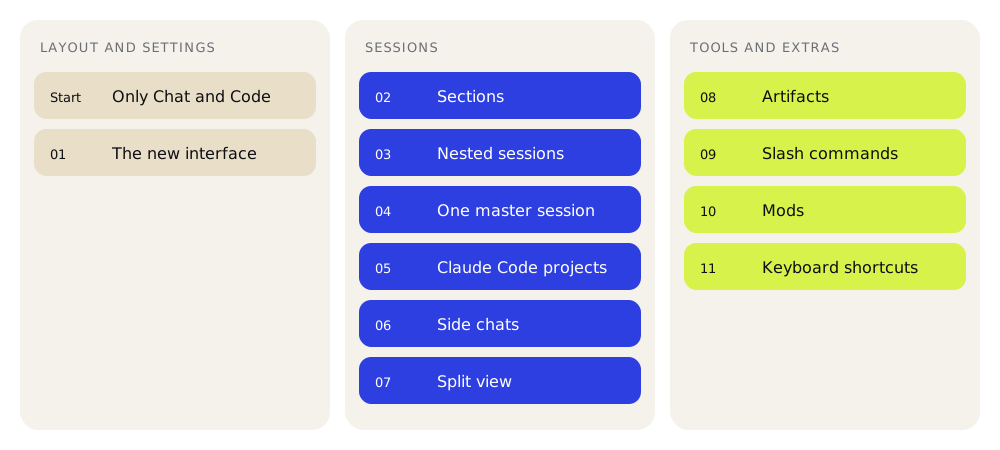
| # | Update | What you get |
|---|---|---|
| Start | Only Chat and Code | Why the Code tab is the one to use, coder or not |
| 01 | The new interface | The session rail, Remote Control and the Context card |
| 02 | Sections | Your chats sorted into named groups, like folders |
| 03 | Nested sessions | Sessions that start their own sessions and report back |
| 04 | One master session | One chat that runs all your other chats |
| 05 | Claude Code projects | A team of sessions that keeps working in the cloud |
| 06 | Side chats | Questions on the side, without interrupting the work |
| 07 | Split view | Several chats on one screen |
| 08 | Artifacts | Docs, Slides, Design, Dashboards and Motion, plan by plan, plus AI-powered artifacts |
| 09 | Slash commands | Seven worth knowing |
| 10 | Mods | Ribbon and Savvy Progress, with install steps |
| 11 | Keyboard shortcuts | Open Claude from anywhere, rewind, voice, and the full list |
Start here: Only Chat and Code now
Open the new Claude desktop app and the top bar shows just Chat and Code. Since September, Cowork lives inside Chat.
To get the most out of Claude, use Claude Code: click Code at the top of the app. It’s Anthropic’s flagship product, so that’s where the best and most frequent updates land.
Don’t let the word “code” put you off. The name is misleading. Anyone can use Claude Code, because you simply prompt and steer Claude in plain English. Becoming a developer isn’t required.
Update 1: The new interface
The session rail is the panel on the right of the window: a stack of cards that tell you what’s happening in this session.
Turn it on
Can’t see it? Click Show session rail at the top right of the app and it opens. Hide session rail closes it.
| Card | What it shows you |
|---|---|
| Environment | Which folder this chat is working in, and whether it runs on your computer or in the cloud. The Remote Control switch lives here. |
| Context | How full Claude’s working memory is for this chat, and what’s taking up the space. |
| Connectors | The apps you’ve plugged into Claude. |
| Outputs | Every file this chat has made. |
Remote Control: carry on from your phone
Flip the Remote Control switch in the Environment card and you can pick up this exact session on your phone. Start a task at your desk and check in on it while you’re out. Remote Control is on Pro and Max. On Team and Enterprise, an owner has to enable it first.
The Context card
Context is Claude’s working memory for this chat. The card shows how full it is and what’s filling it. Claude’s newest models have a 1 million token context window: roughly four Harry Potter books laid side by side.
Besides your own messages, the card shows how much room your memory files, your skills and your MCP connectors (listed as MCP tools) already take up.
That matters because they load into every chat you start, so they eat into your usage limits from your very first prompt. If they’ve grown long, clean them up. Start with the prompt below, the one shown on screen in the video.
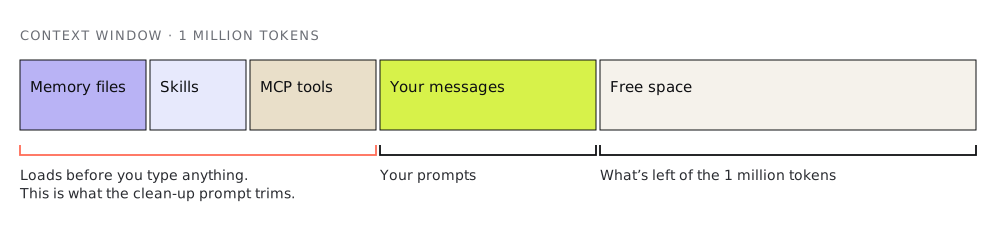
The context clean-up prompt (on screen in the video)
Look at everything that loads into my chats before I type anything: my CLAUDE.md and memory files, my skills, and my MCP tools. Run /context first. Then list each one with roughly how much space it takes, and tell me which ones I could shorten, merge or turn off without losing anything I actually use. Don’t change anything until I say yes.
Update 2: Sort your chats into sections
- Click the three dots next to any chat in the left sidebar.
- Choose Move to > New section, then create the section and name it.
- From then on, drag any other session into it.
Instead of scrolling through fifty chats to find the right one, keep one section per project, per client or per part of the business. Your master session can also create sections and move chats into them for you (update 04).
Update 3: Nested sessions
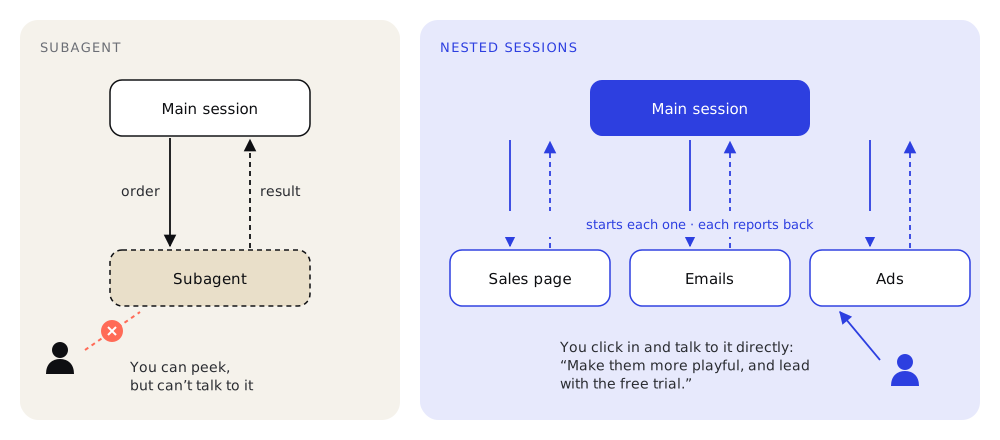
A session is simply one of the chats in your sidebar. Now a session can start sessions of its own. These sub-sessions sit right under it in the sidebar, and when each one finishes, it reports back to the session that started it.
How to try it
- Ask Claude to do a few tasks at once, and to start a nested session for each one.
- The nested sessions show up under your main session. Each reports back to it when done.
- Click into any of them to see everything it did, and keep working with it directly.
Example: launching a marketing campaign
I’m launching a new marketing campaign. I need a sales page, the emails and the ads. Do these at the same time, and start a nested session for each one.
How is this different from subagents?
Subagents are helpers a session sends off to do one job, and they’re still useful. The difference is what you can see and do.
| Subagent | Nested session | |
|---|---|---|
| What it is | A helper a session sends off to do one job | A real chat in your sidebar |
| How it works | A one-way order: the main session sends a prompt and you get a result back | Reports back to the main session that started it |
| Can you talk to it? | No. You can peek at its progress, but you can’t jump in and talk to it | Yes. Click in, see everything it did, and keep working with it directly |
Steer one of them directly
Say you want a closer hand on the session writing your ads. Jump into that chat and tell it what to change, like this:
Example: steering the ads session
Make them more playful, and lead with the free trial.
Nested sessions work on any plan with the Code tab: Pro, Max, Team and Enterprise. The plan table is under update 05.
Update 4: Run everything from one master session
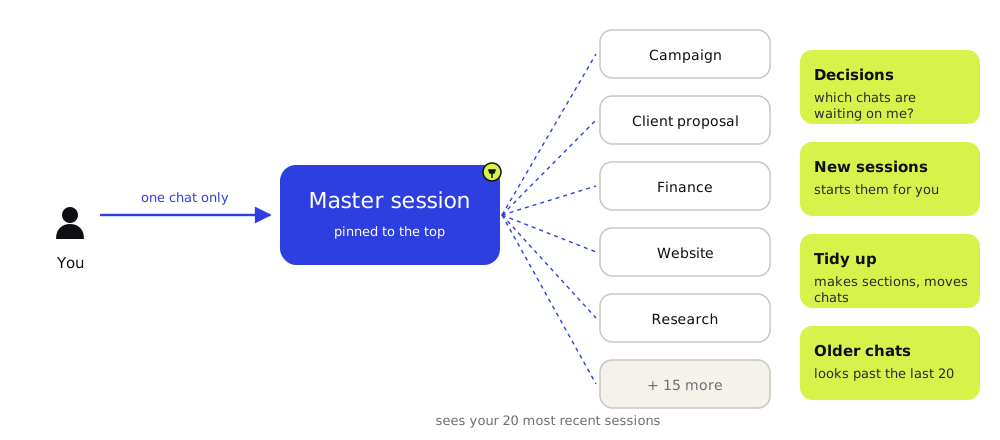
Here’s something few people know yet: in Claude Code, one session can see your other sessions. So if you’re tired of jumping between ten or twelve chats in the sidebar, you can talk to just one: your master session.
Set it up
- Pick one chat to be your master session, and pin it to the top of the sidebar so it’s always in view.
- Tell Claude it’s your master session, with the prompt below.
- From then on, talk to that one chat.
The master session prompt (from the video)
You’re my master session. Keep track of my other sessions from here.
Then ask it things like
Decisions
Which of my chats are waiting on me for a decision?
New sessions
Start two new sessions: [first task] and [second task].
Tidy up
Make a new section for all the chats about [topic].
Older chats
Look further back than my last 20 sessions.
Ask for the decisions and it reads through your other chats, picks out the ones waiting on you and sums them up, all inside that one chat.
In effect, this pinned chat becomes a personal assistant that runs Claude and every other chat you have. It starts new sessions for you and you steer them from there. It tidies the sidebar too: in the video, it built a new section for every chat about the video without a single click.
Update 5: Claude Code projects
A closely related update is Claude Code projects. Same idea: one main session running a whole team of chats for you. But a few differences matter a lot:
- Projects run in the cloud, so they keep going with your laptop closed. Nested sessions run on your computer: if it’s asleep, they stop.
- Nested sessions can use every skill, file and tool on your computer. That’s a big help for work that needs your business context.
- Projects can use your skills and files too, but you add them first. You can upload files by hand, but the better route is to ask Claude to fetch the skills and context the project needs from your computer while it’s still awake.
- Your files go to Anthropic. Projects run on Anthropic’s cloud, so any business file you upload ends up on Anthropic’s servers.
- Shared custom memory. Set a rule once for the whole project and every session you start in it follows that rule.
- An Overview page shows what’s done, what’s still running and what’s waiting on you.
Bring in your skills (from the video)
Get the skills and context this project needs.
A project rule (from the video)
Write everything in Australian English.
The rule goes in the project’s settings, under Memory, in the Project instructions box.
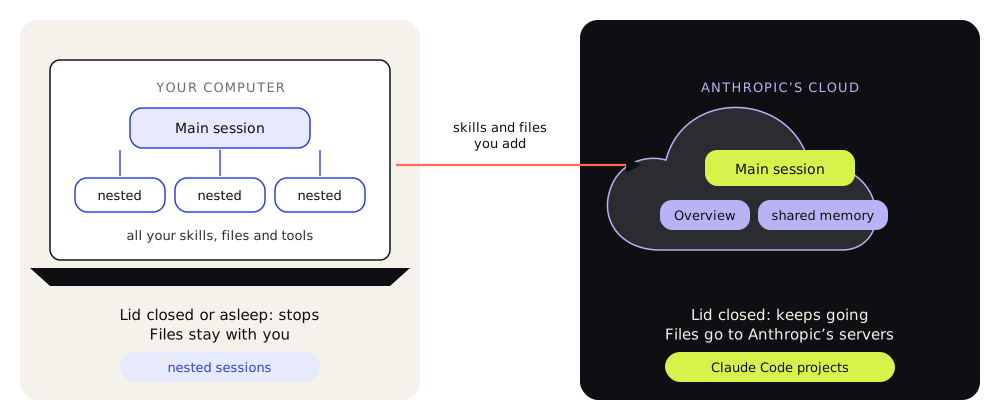
Nested sessions vs projects
| Nested sessions | Claude Code projects | |
|---|---|---|
| Where it runs | Your computer | The cloud |
| Laptop closed or asleep | Stops | Keeps going |
| Your skills, files and tools | All of them | The ones you add (upload them, or ask Claude to fetch them from your computer while it’s awake) |
| Where your files go | They stay on your computer | Anthropic’s servers |
| See progress | Reports to the main chat, or open any session in the sidebar | An Overview page: done, working, waiting on you |
| Best for | Work that needs your computer, or when you’d rather work locally | Big ongoing projects while you’re away |
Rule of thumb: needs your computer, or local work? Use nested sessions. Big ongoing project while you’re away? Try projects.
Who has access
| Free | Pro | Max | Team | Enterprise | |
|---|---|---|---|---|---|
| Nested sessions (any plan with the Code tab; the docs name no plan limit, just update the app) | No | Yes | Yes | Yes | Yes |
| Claude Code projects (in testing, rolling out slowly) | No | Beta | Beta | Not yet | Not yet |
Free has no Code tab. “Not yet” means coming, no date given. Projects are in beta and only on Pro and Max for now; Anthropic says Team and Enterprise follow the Pro and Max rollout.
Can’t see Projects?
- Look for Projects in your sidebar.
- Not there? Check under More in the sidebar. That’s usually where it hides.
- Still nothing? Join the waitlist: claude.com/form/projects.
Update 6: Side chats
Claude is deep into a long task and a question pops into your head. Asking in the main chat is a bad idea: you interrupt the work and burn more tokens. Side chats exist for exactly this.
| Open a side chat | |
|---|---|
| Three dots menu | Click the three dots at the top right and choose Side chat |
| /btw | Type it in the message box |
| Ctrl + ; | Or Cmd + ; on a Mac |
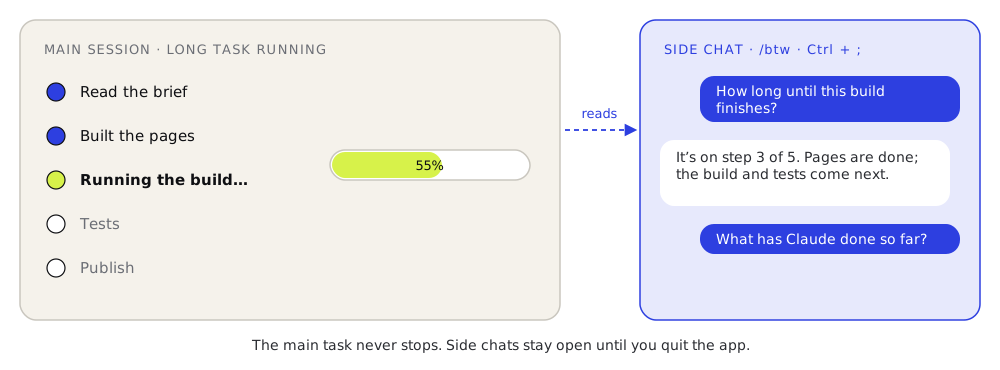
A new chat window opens next to the main one. It can read the entire main session, so you can ask it to explain what Claude has done so far or to check on progress.
Before, /btw opened a temporary chat that wasn’t saved anywhere. Now you can open as many side chats as you like, and each one stays open so you can come back to it. One catch: the desktop app doesn’t keep side chats once you quit it, so copy out anything worth keeping.
Ask a side chat things like (from the video)
How long until this build finishes?
What’s this build even about?
What has Claude done so far?
Update 7: Split view
| To do this | Windows | Mac |
|---|---|---|
| Open a chat beside this one | Hold Alt and click a chat in your sidebar | Hold Option and click |
| Or use the menu | Right-click the chat, choose Open in > Split view | Same |
| Fit more chats on screen | Zoom out: Ctrl + - | Cmd + - |
| Reset the zoom | Ctrl + 0 | See Cmd + / |
Zoomed out, up to ten different chats fit on one screen. Careful, though: that much on screen fills up your own brain’s context window. This one isn’t for beginners. Start with two side by side and add more once that feels easy.
Update 8: Docs, Slides, Design, Dashboards, Motion
Anthropic now has its own take on Google Docs and Google Slides, plus tools for design, dashboards and video. Each one produces what Anthropic calls an artifact: a canvas where you and Claude work on the same document, design or dashboard. You can leave comments for Claude to fix. And, as in Google Docs, you can publish any of them as a live link or share them with your team or a client.
| Type | Think of it as | What it does |
|---|---|---|
| Docs | Google Docs | You and Claude write the same document together. |
| Slides | Google Slides | Makes presentations. Download them as PowerPoint or present straight from Claude. |
| Design | Canva | Claude’s answer to Canva: social posts, websites and anything visual. Anthropic is moving Claude Design in here for good, since the old standalone site (claude.ai/design) closes by 14 December 2026. Upload your design system under Settings > Design, or do what most people do and use a skill that brings your design system in. |
| Dashboards | Live numbers | The newest one. Pulls live data from your connected apps, so the numbers are current every time you open the link. |
| Motion | Animated video | Makes animated videos with code rather than a video model. That makes it far cheaper, since you don’t pay per generation, and the videos are easier to change. The author’s full video: youtube.com/watch?v=Eg08Lr3zqdw. |
On Pro or Max? No Motion yet
| Free | Pro | Max | Team | Enterprise | |
|---|---|---|---|---|---|
| Docs | Yes | Yes | Yes | Yes | Yes |
| Slides | Yes | Yes | Yes | Yes | Yes |
| Design | Yes | Yes | Yes | Yes | Yes |
| Dashboards | No | Beta | Beta | Beta | Beta (admin turns on) |
| Motion | No | No | No | Beta | Beta (admin turns on) |
The headline: on Pro or Max today, the only thing you’re missing is Claude Motion, which is Team and Enterprise only for now. Source: Claude help centre and claude.com/pricing, checked 27 October 2026.
AI-powered artifacts
Example: a dashboard your team can ask
Say there’s a dashboard you and your team use constantly. Ask Claude to add a chat window or a search bar right inside it, where anyone can type a question and Claude answers from the data on that dashboard.
Try it on a dashboard (from the video)
Add a search bar where anyone can ask about this data
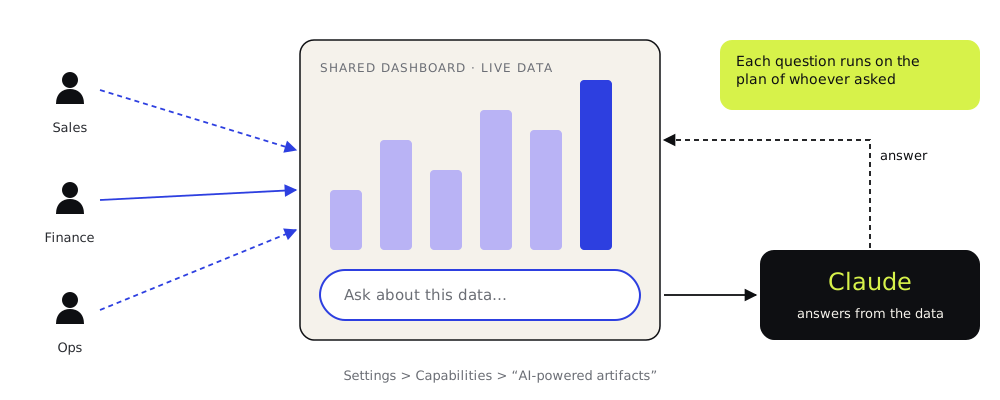
Sharing it with your team
Because artifacts can be shared, teammates just open the link you sent and ask it questions to get the data they need. The dashboard itself is AI-powered.
Nobody has to learn Claude Code, which matters most when you share with a wider audience. Each person signs in with their own Claude account, and every question runs on their own plan.
Update 9: Slash commands worth knowing
Anthropic shipped new slash commands and refreshed some of the most useful older ones. Type / in the message box to see them all. Here are seven.
| Command | What it does |
|---|---|
| /output-style | Changes how Claude talks to you. If answers feel too long or too technical, switch to a shorter, plainer style, like the ELI5 (“explain like I’m five”) style from another of the author’s videos, which has Claude speak without jargon. You can also ask Claude to build a style of your own. |
| /doctor | Runs a checkup on your setup. It reviews your settings and your CLAUDE.md (the instructions file Claude reads at the start of every chat) and offers to fix any problems it finds. |
| /skill-doctor | Shows what each skill costs in Claude’s working memory and how often you actually use it, so you can switch off the ones you never touch and save tokens. Needs Claude Code 2.1.252 or later. |
| /advisor | Lets Claude call in a stronger model, like Opus or even Fable, only when a big decision comes up. Run a cheaper model such as Sonnet most of the time, and it brings in the bigger one only when it judges a decision to be critical, so you don’t burn through your limits on the big models. |
Make your own output style (from the video)
Make my own output style: short, warm, no jargon
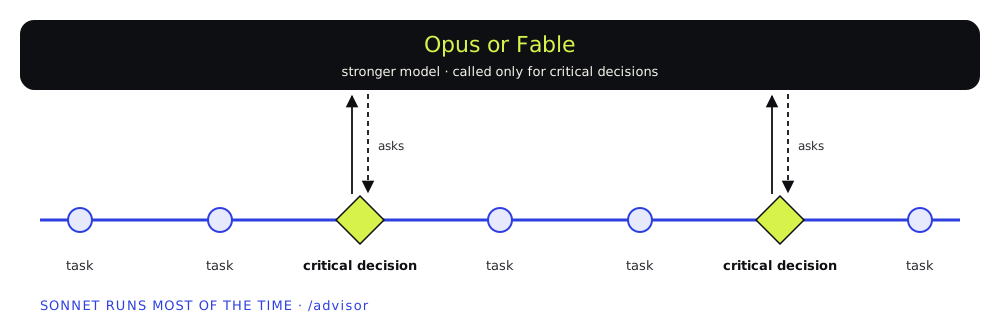
Three more quick ones
| Command | What it does |
|---|---|
| /insights | A report on how you use Claude Code, plus features to try. |
| /recap | A one-line summary of where the chat is up to, so you remember what you and Claude were working on. |
| /rewind | Takes you back to an earlier point in the chat. Think of it as Claude’s undo button. |
Update 10: Mods
A mod is a small add-on that changes how the Claude Code app looks or behaves, and you can make one just by describing it to Claude. Mods are on by default in Claude Code 2.1.286 and later, and they work in the desktop app from that version on. Here are the guide author’s two favourites.
1. Ribbon (the guide author’s own mod, in daily use)
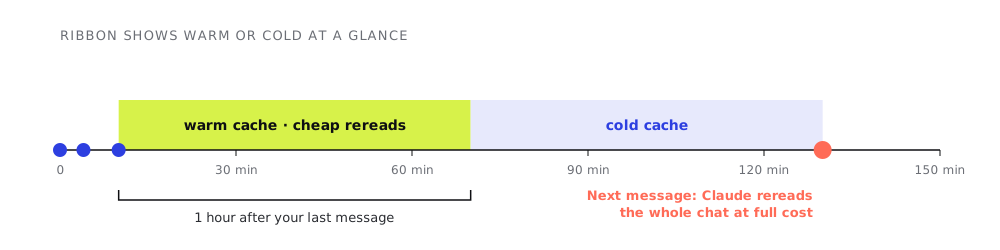
A slim bar above your chat box showing how much of your weekly usage is left. It also shows whether that chat’s prompt cache is warm or cold, which goes a long way toward cutting token burn. Free and open source: github.com/robonuggets/ribbon.
2. Savvy Progress
A progress bar above your chat box, so you can see how close Claude is to finishing a long task. On bigger jobs, where a team of helpers (subagents) shares the work, a live panel on the right shows each of them, complete with little pixel Claude crabs you can customise. Free and open source: github.com/JohnnyVizz/claude-kit.
Want to go deeper? The author’s full video on Claude mods: youtube.com/watch?v=lDrAZ1wAyVs.
Install Ribbon
The easy way: send this to your agent
install this https://github.com/robonuggets/ribbon
Your agent runs one command and the bar shows up in your next session.
Or by hand, in a Claude Code terminal session
/plugin install ribbon --marketplace robonuggets/ribbon
Type y when it asks “Add marketplace?”, pick the user scope with Enter, then start a new session.
Install Savvy Progress
In Claude Code, type these one at a time
/plugin marketplace add johnnyvizz/claude-kit
/plugin install savvy-progress@claude-kit
Restart the session afterwards.
Mods are built on an early-access Claude Code feature, so things can change between releases. If Savvy Progress doesn’t appear after installing it this way, download the repository once and load it by hand:
In your terminal
git clone https://github.com/johnnyvizz/claude-kit.git ~/claude-kit
Then add this to ~/.claude/settings.json
{
  "env": {
    "CLAUDE_CODE_PLUGIN_DIRS": "~/claude-kit/plugins/savvy-progress"
  }
}
That loads it in every session, desktop app included. If the setting already exists, add to it rather than replacing it. On Windows, use the full folder path and separate several folders with ; instead of :. Your .claude folder sits inside your user folder. To update, run git pull in the claude-kit folder.
Update 11: Keyboard shortcuts
| Shortcut | What for | Details |
|---|---|---|
| Ctrl + Alt + Space | Open Claude from anywhere | Press the three keys anywhere on your computer. Halfway through an email and want help? Press them, ask (say, “Make this reply shorter and friendlier”), and it opens as a new chat in the app. Windows; on a Mac, find yours in the full list (Cmd + /). |
| Esc Esc | Rewind | Press Escape twice to open /rewind. Go back to an earlier prompt and undo the conversation after it. |
| Ctrl + D | Talk instead of type | Turns on voice transcription: you speak, Claude turns it into text. On a Mac, find yours in the full list (Cmd + /). |
| Ctrl + / | See every shortcut | There are quite a few. This shows the full list. Mac: Cmd + /. |
More shortcuts from this guide
| Windows | Mac | What it does |
|---|---|---|
| Ctrl + ; or /btw | Cmd + ; | Open a side chat |
| Alt + click a chat | Option + click | Open it in split view |
| Ctrl + - | Cmd + - | Zoom out to fit more chats |
| Ctrl + 0 | See Cmd + / | Reset the zoom |
Shortcuts look like a small thing, but if you use Claude a lot, learning them pays off.
Where this goes next
Switching these on is the easy part: most of this guide takes a few minutes. The skill that pays is running Claude like a team: one master session, the right work in the right place, and setups built for your own business and for the clients you serve.
That’s how BossaMotion runs today: one coordinator keeping track of several workstreams, each workstream in its own chat, project rules written once, and deliverables that come back for sign-off. It’s the same design we bring into our clients’ operations, with agents handling the repetitive work and people deciding what matters.
Every link
| What | Link |
|---|---|
| Projects waitlist | claude.com/form/projects |
| Ribbon mod | github.com/robonuggets/ribbon |
| Savvy Progress mod | github.com/JohnnyVizz/claude-kit |
| Video: Claude Motion | youtube.com/watch?v=Eg08Lr3zqdw |
| Video: Claude mods | youtube.com/watch?v=lDrAZ1wAyVs |
| Video: the ELI5 output style | youtube.com/watch?v=HH6QqWyXJu8 |
| The 14 Oct desktop update (ClaudeDevs) | x.com/ClaudeDevs/status/2110445844675838148 |
| Thariq, then on the Claude Code team: “almost like a v2” | x.com/trq212/status/2110463962877989276 |
| The mods launch (ClaudeDevs) | x.com/ClaudeDevs/status/2105721434807083061 |
| Claude Code changelog (Claude Design closing date, 2.1.302) | code.claude.com/docs/en/changelog |
| Desktop app docs | code.claude.com/docs/en/desktop |
| Claude Code projects docs | code.claude.com/docs/en/claude-projects |
| Slash commands reference | code.claude.com/docs/en/commands |
| Dashboards and Motion launch | claude.com/resources/articles/dashboards-and-motion |
The setup checklist
Layout and settings
- Open the Code tab and click Show session rail
- Settings > Claude Code: “Connect new sessions to Remote Control”
- Settings > Claude Code: “Keep computer awake while Claude works”
- Run the context clean-up prompt
Sessions
- Sort your chats into sections: three dots, Move to > New section
- Ask Claude for a few tasks at once, each in its own nested session
- Pin a master session and tell Claude it’s your master session
- Find Projects: your sidebar, then More, then the waitlist (Pro and Max)
- Open a side chat: three dots at the top right, /btw or Ctrl + ;
- Try split view with two chats: Alt + click
Tools and extras
- Make one artifact, and check your plan in the artifacts table
- Settings > Capabilities: “AI-powered artifacts”, then add a search bar to a dashboard
- Try /output-style, /doctor, /skill-doctor and /advisor
- Install the Ribbon and Savvy Progress mods
- Press Ctrl + Alt + Space to open Claude from anywhere (Windows)
- Press Esc twice to rewind, and Ctrl + D to talk instead of type
- Press Ctrl + / (Cmd + / on a Mac) to see every shortcut
Switching all of this on takes minutes. What changes the game is running Claude like a team: one master session, the right work in the right place, and rules written once.
Enjoyed this article?
Get the next one before it hits the blog.
A short email per issue with what actually matters about AI agents at work. No spam.